
Testing devices from your Mac
Therbie for Mac can show the live readings of the iPhones and iPads it's paired with, and start benchmarks and throttle tests on them. A run plan tests several devices at once while you're away, for example overnight.
Pair each device first: see Pair your Mac and devices.
On the iPhone or iPad
- Go to the Mac tab. On the Mac Testing card, turn on Allow my Mac to run tests.
- Allow Local Network access when iOS asks. Therbie needs it to be found on your network.
- Plug the device in and keep Therbie on screen. iOS stops tests when you leave the app.
Screen: while a test runs, and for 30 minutes after, Therbie keeps the screen on, so a plan's next test can start once the device has cooled. Just being connected to the Mac doesn't keep the screen on. Set Auto-Lock to Never yourself if you want it to stay on.
Connection: it closes shortly after Therbie leaves the screen, even with the floating monitor open. The Mac reconnects when you come back. A test that was already running carries on, and its result is sent when the Mac reconnects.
Who can connect: only Macs you've paired with, and everything between them is encrypted. Paired Macs on the Mac Testing card lists them. Tap Remove to unpair one.
Low Power Mode: a device with Low Power Mode on refuses tests from the Mac, because results wouldn't be comparable. The card says so.
On the Mac
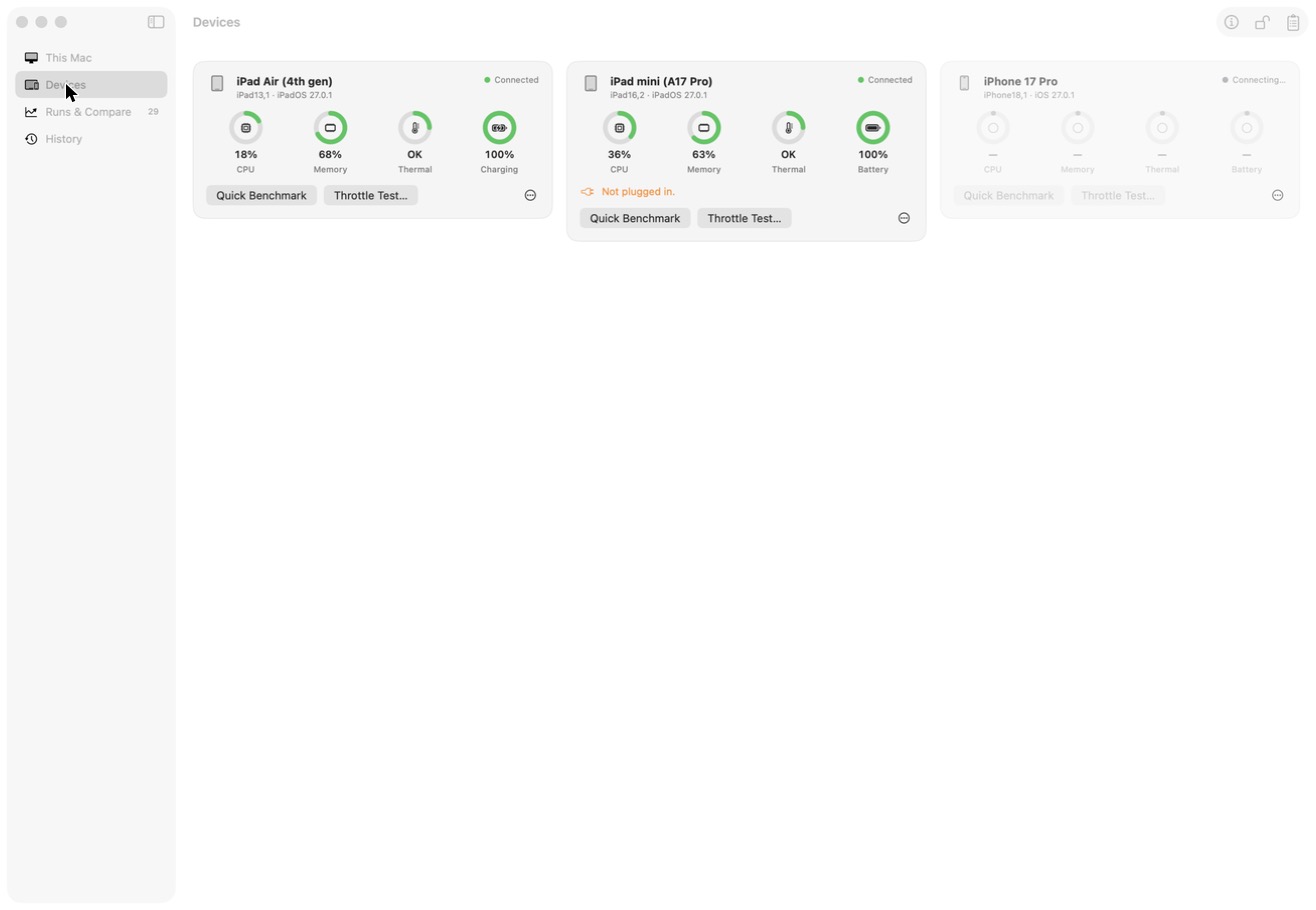
Open Devices. A device that isn't paired shows Pair…. A paired device connects by itself and shows:
- CPU, memory, thermal state and battery;
- when its History, benchmarks and data usage last arrived;
- buttons for Quick Benchmark and Throttle Test….
Throttle Test… offers CPU or GPU, for 5, 10 or 20 minutes, with an optional label. This differs from the device itself, which offers 5 or 15 minutes.
The ⋯ menu on a device has Rename…, and Disconnect while it's connected. It also has Unpair while it's paired. For a device that's no longer on the network, it has Forget (or Unpair and Forget). Renamed devices keep their name in Runs & Compare.
Device names default to the model, such as iPad mini (A17 Pro). iOS doesn't give apps the name you've given your device, so use Rename… for your own names.
A device's status reads, for example, Connected, Connecting…, Reconnecting…, Not on the network, Not paired or Update needed.
Run plans
A run plan is a list of steps that each chosen device works through at its own pace. Click Run Plan in the Devices toolbar.
| Step | What it does |
|---|---|
| Wait Until Normal | Waits until the thermal state has been Normal for a full minute. After 90 minutes it carries on with a warning |
| Quick Benchmark | Runs the one-minute benchmark |
| Rest | Waits a set number of minutes, from 1 to 120 |
| Throttle Test | CPU or GPU, from 1 to 60 minutes, with a label |
Add steps with Add Step. Use Standard Plan fills in this plan:
- Wait until Normal, then a quick benchmark.
- Rest 10 minutes, then a CPU test for 5 minutes.
- Rest 15 minutes, wait until Normal, then a GPU test for 15 minutes.
- Rest 15 minutes, wait until Normal, then a CPU test for 5 minutes again, to check the first run.
The app shows it as About 1 h 7 min, plus time to cool down per device.
- Start: tick the devices to include and click Start Plan. Every result goes to Runs & Compare. Stop Plan ends it.
- The Mac stays awake while a plan runs. Closing a MacBook's lid still sleeps it.
- The log records every step, refusal and disconnect, and is kept after the plan ends (up to 2,000 entries). Copy and Clear are above it.
- If a device drops off, the Mac waits up to 30 minutes for it to come back and carries on. After that it skips the rest of that device's plan.
- If a device refuses a step, for example because Low Power Mode is on or it's at Critical, the Mac tries again every minute, up to 5 times, then skips that step.
- If a device is busy with another test, the Mac keeps trying for up to 45 minutes.
Tip An iPhone can take 20 to 30 minutes to cool back to Normal between tests, much longer than an iPad. Wait Until Normal handles it. See How long should a throttle test be?